The Definitive Google Ad Grants Guide
Welcome to our Google Ad Grants guide! We’ll walk you through a basic set up for your Google Ads account and what you need to do to keep your account compliant. If you don’t have a Google Ad Grants account yet, you can follow the steps here in Part 1.
Ready to jump in?
- Planning your Account Structure
- Tracking Conversions with Google Analytics 4
- Using Automated Tools in Google Ad Grants
- Keeping your Ad Grants account Compliant
1. Planning your Account Structure
The $10,000 Google Ad Grants allocation is assigned at an account level. That means you can run as many campaigns as you like across different themes. But we recommend starting with a smaller number which will be easier to manage.
Within a Google Ads account, you can create multiple Search Campaigns, which contain Ad Groups and Keywords. You can also create Performance Max campaigns.

Let’s take an example to illustrate this:
I run a make-believe homeless charity that operates across the UK. My charity uses its website to signpost emergency shelters for people who are homeless, promote fundraising events we’re hosting, advertise volunteer positions, and get users to visit our charity shop.
For my charity, I might set up a campaign structure as follows:
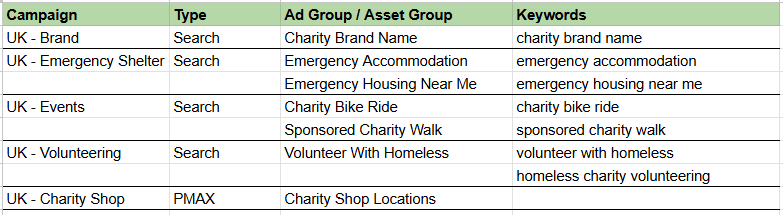
We recommend having at least two keywords per ad group, but make sure they’re highly relevant to each other.
Google has an excellent guide to basic Google Ads account structures that you can find here.
Performance Max
At the end of 2024, Google gave Ad Grants access to a new campaign type, called Performance Max (PMAX for short). While this campaign type includes Shopping, Display, Search and Video in standard Google Ads account, Ad Grants only have access to Search and Google Maps (at least for now).
If you have a local business (like a charity shop, a theatre, or any relevant physical location, you can link your Google My Business account, which will allow you to show ads on Google Maps for users near your location.
PMAX use search themes instead of keywords, and you can set up audience signals to further improve the targeting of your campaign, by including your key audience’s interests and demographics.
Follow Google’s guide to set it up.
We recommend having multiple Search campaigns, one for Brand to target your charity’s name, and relevant campaigns to promote all the key areas of your organisation. We also suggest testing a PMAX campaign to promote your physical location. If you don’t have a venue, you could promote your informational pages or events, which should help increase traffic in your account.
Search Ads
Search ads are typically composed of the Brand name and logo, one or two Headlines, one or two Descriptions, and a URL. See below an example from Shelter. The blue text is the two headlines, followed by the descriptions.
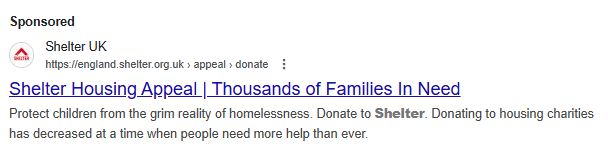
Having good ad copy is crucial for getting users to click on your ad and visit your website. Your need to make sure your ad copy is as relevant to the keywords in your ad group as possible, as these ads will show for all of the keywords in the ad group. This is also the reason why it is important to ensure keywords within ad groups are grouped around the same theme.
For example, if you had one ad group containing keywords for policy and volunteering, your ads would only be able to go to one website URL. So you’d be sending users interested in volunteering to policy documents, or those interested in policy to the volunteering pages. Neither of which would be a good user experience and would damage the quality score.
Sitelinks
Sitelinks appear under your ads and take the users to specific pages on your site. They’re a great way of showcasing additional pages from your website within your ad.
In the example below, the sitelinks are the four hyperlinks displayed below the main ad copy (Hours, Specials, Biscuits and Healthy Diets).
As per Ad Grants policy, every campaign needs at least two sitelinks extensions with different destination URLs.

We have a blog post where we go more in depth on each Ad Extension available.
2. Tracking Conversions with Google Analytics 4
Setting up your campaigns isn’t enough, your Ad Grants account needs to have conversion tracking set up in order to remain compliant with Google’s policy. Your account should receive at least 1 conversion every 30 days. You can set up event tracking through Google Ads right after you create a campaign, or you can use GA4.
If you don’t have a GA4 account, you can follow this guide to set it up.
After creating your GA4 account, you’ll be able to enable enhanced measurement, which automatically collects multiple events you can import into your Ads account, like page views, video engagement, file downloads and site searches.

In this case, if you’re happy using these basic events as goals for your Ad Grants, you don’t need to set up any more events. You can just enable the ones you want to track by visiting your Data Stream on GA4.
If you want to track specific actions taken on your site, we recommend creating custom events. These custom events are created from existing events, meaning you need one of the automatically created events as a base. In Configure, go to Events and select Create event.
Let’s take a look at a few examples below:
- To track a specific link click: If you want to track clicks on your email address, you’ll need to have “click” as a base for your new outbound clicks event. You’ll then need a parameter to identify the specific link click you want to track, in this case, we’ll use link_url.

- To track a form submission thank-you page: You’ll need the “page_view” event as your base. Use page_location to identify your confirmation page.

- To track a specific PDF download. In this case, you’ll need the file_download event as a base, and we’ll use the same parameter page_location to identify the PDF we want to track.

How to use custom dimensions:
Custom dimensions are the extra information we can collect from an event. You can set up any parameter you want to follow. This list explains which parameters work with each event type https://support.google.com/analytics/answer/9216061?hl=en
In Configure, go to Custom definitions and click on Create custom dimensions. Add the relevant parameters, for example, if we want to see which PDFs users are downloading from our site, we can add a file_name parameter.
To see your new parameter in action, go to the Events report and filter by event type, in this case, file_downloads. Then, add a second column for your custom dimension.

3. Using Automated Tools in Google Ad Grants
Rules
When you create an automated rule, you allow it to make changes in your account automatically based on the conditions and actions that you choose.
It’s useful for Ad Grants accounts because you can:
- Pause campaigns when they spend a certain amount
- Pause low-quality keywords
- Pause keywords with low ad relevance
- Pause ads with a low CTR
- Send email alerts for things like low CTR or high spending campaigns
To create a rule, navigate to your Ads account dashboard, then go to Tools> Bulk Actions> Rules. Select which type of item you want to be affected by the rule, the action and the specific items that will be affected once the rule is live. Add your conditions and define the frequency you want your rule to run.
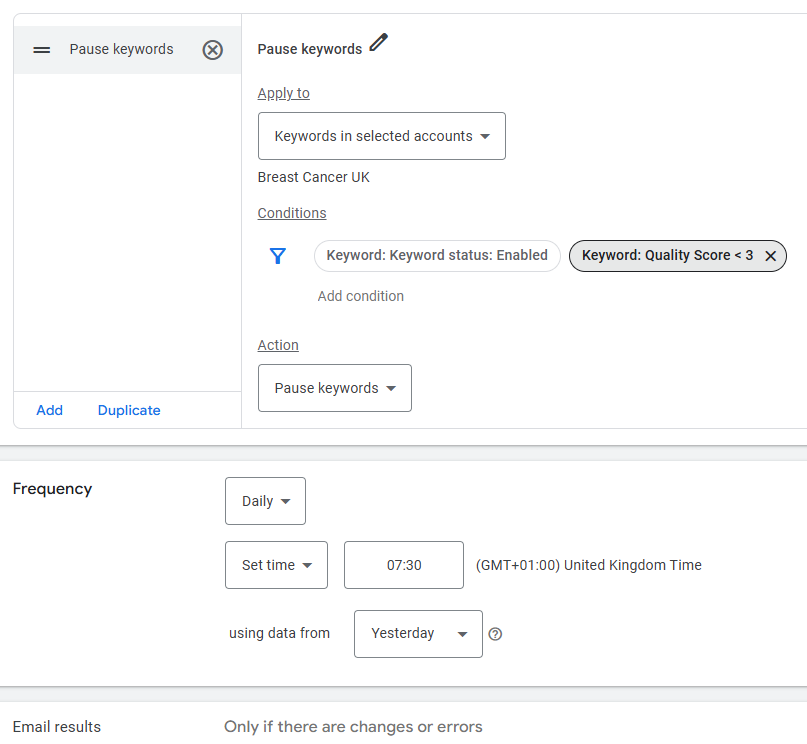
One very useful, simple rule idea: set up an automated rule to run daily and email alert and/or pause keywords with a quality score below 3 out of 10.
Keywords under this level have to be paused or removed, as they are against Google’s Ad Grants rules (and suggest the keyword is a poor choice for your organisation to target).
An email alert is useful as you can then look into the keyword’s performance in more detail to see if there are changes you can make to improve its performance, such as choosing a better-suited landing page or changing the ad copy.
Scripts
Scripts are a way to automate actions in your account. Like rules, they’re a way of automating simple tasks across your account. Unlike rules, scripts are more versatile and can be used in more complex ways.
Scripts are written in JavaScript and can be applied at an account or manager account level.
They are useful for Ad Grants accounts because you can:
- Add a script that checks your account is compliant and emails you the results
- Add a script that will identify all converting search terms and add them into a spreadsheet so you can later add them as keywords
There are lots of free scripts you can find and experiment with online. If you want to create your own, you can use Google’s developer page as a guideline: https://developers.google.com/google-ads/scripts-legacy/docs/start
4. Keeping your Ad Grants account Compliant
Google has very specific rules to ensure that all nonprofits use their grants for good purposes. The Ad Grants’ core purpose is to promote charitable causes, events, and raise awareness and funds for organisations.
Therefore, it’s essential to follow the Ad Grants policy compliance guide to avoid deactivation:
- Have conversion tracking enabled
- Have at least one Search Campaign active
- Have at least two active Ad Groups and two Sitelinks for each campaign
- Use conversion-based Smart bidding for all campaigns
- Have a click-through rate (CTR) higher than 5% for search campaigns
- Don’t use single-word keywords or overly generic terms that aren’t on the approved list
- Don’t target locations that aren’t related to your organisation
- Don’t have enabled keywords with a quality score lower than 3/10
If you do get your account deactivated, we recommend you fix the issue that has made your account non-compliant and then fill in this form: https://support.google.com/grants/contact/Request_for_reactivation